Skip to content
AASC

AASC on your phone

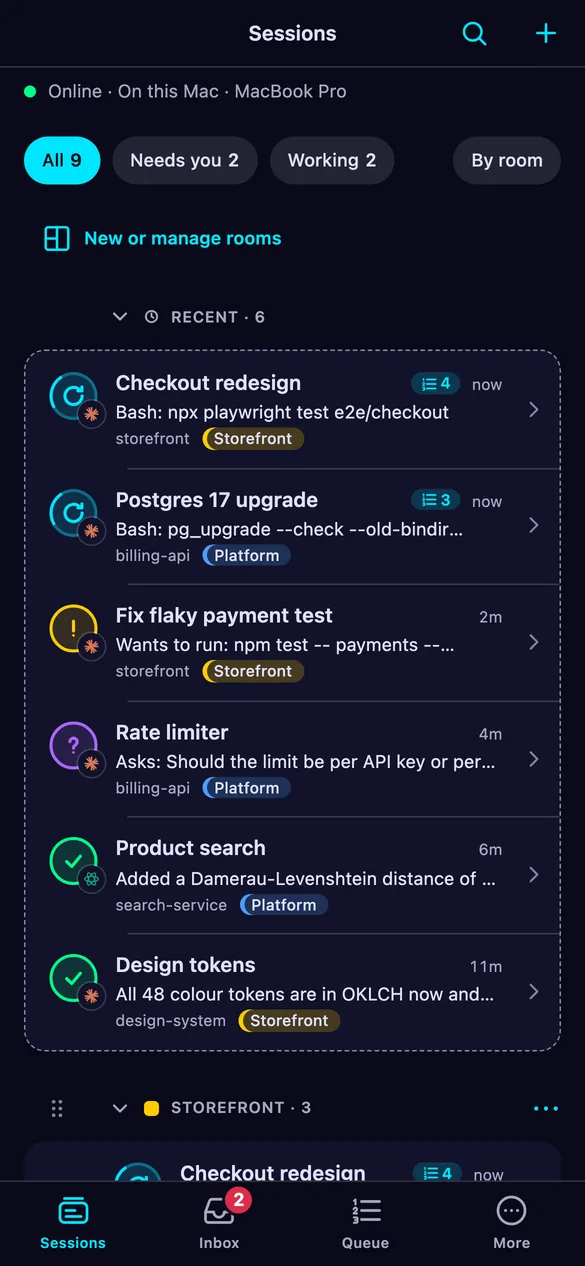
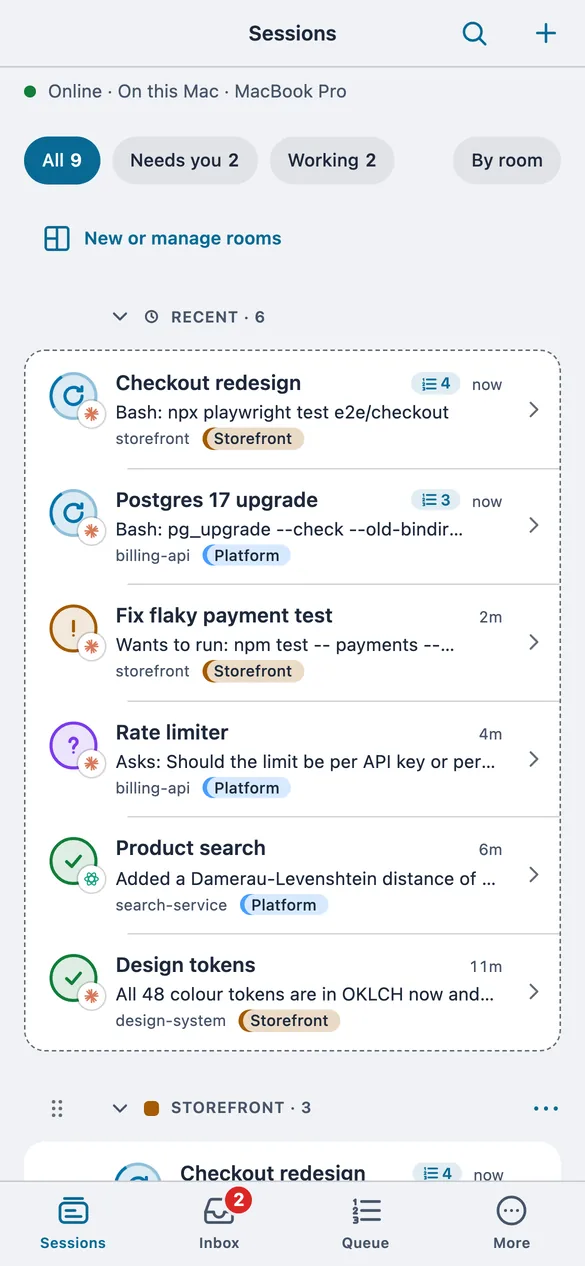
Keep an eye on your agents and answer them from your phone, on your home network or over Tailscale. AASC keeps running on your computer; the phone is a remote for it.
The phone app listing sessions, with the ones waiting for an approval or an answer at the top.The phone app listing sessions, with the ones waiting for an approval or an answer at the top.

What you can do

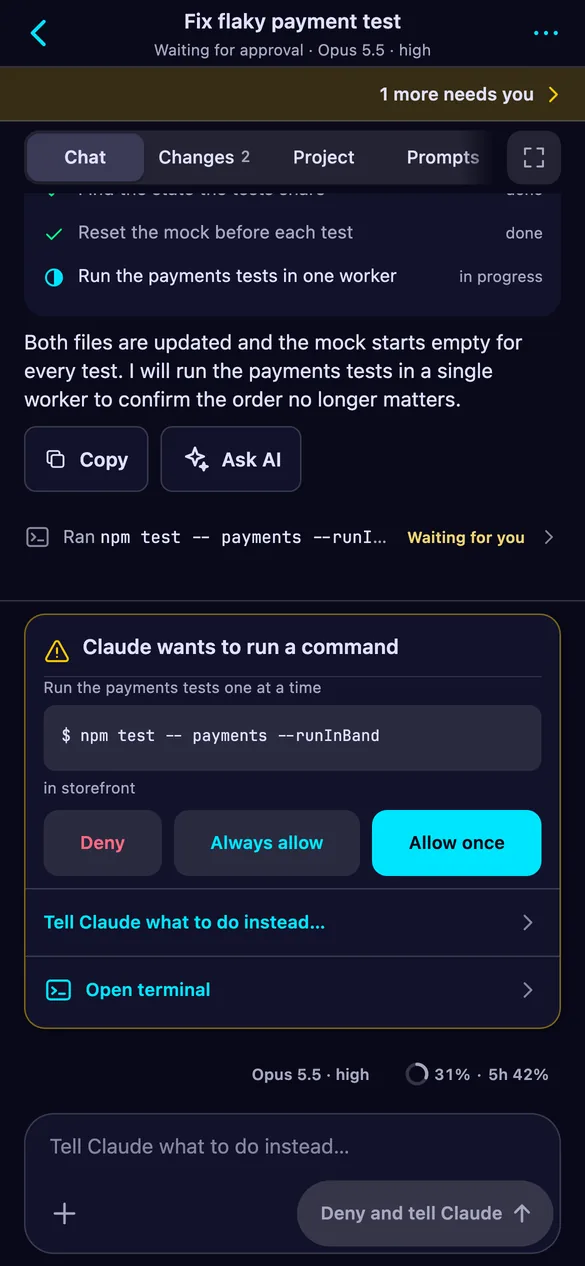
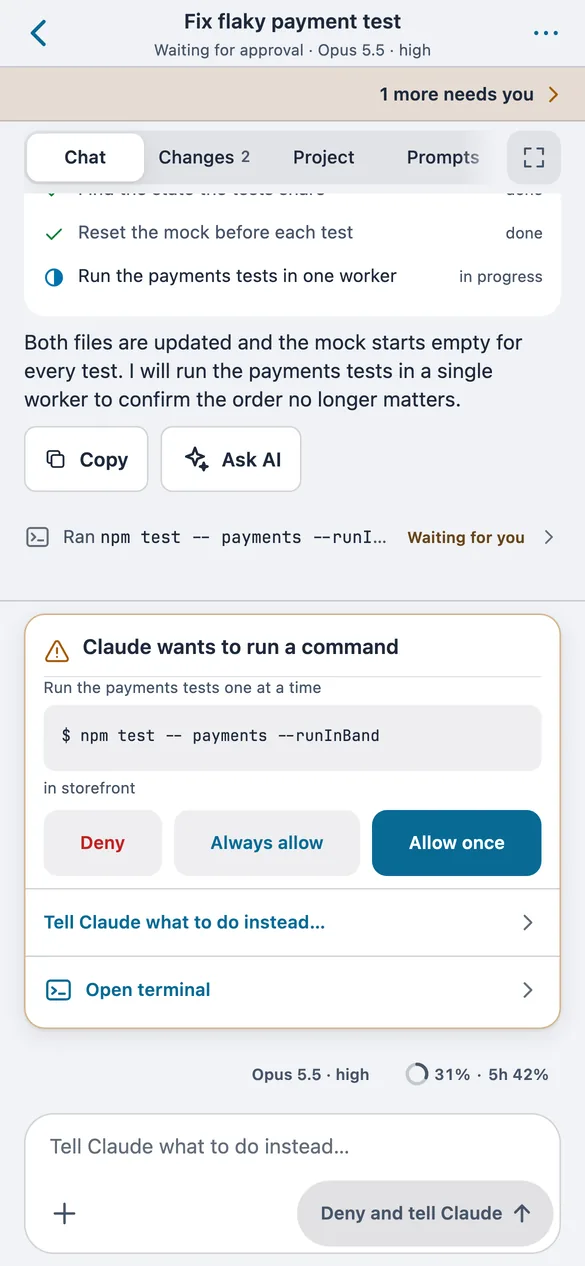
  • A session chat on the phone with a card asking to allow the command npm test.A session chat on the phone with a card asking to allow the command npm test.

    Answer it there

    Each session reads as a chat. Approvals and questions arrive as cards you can answer.

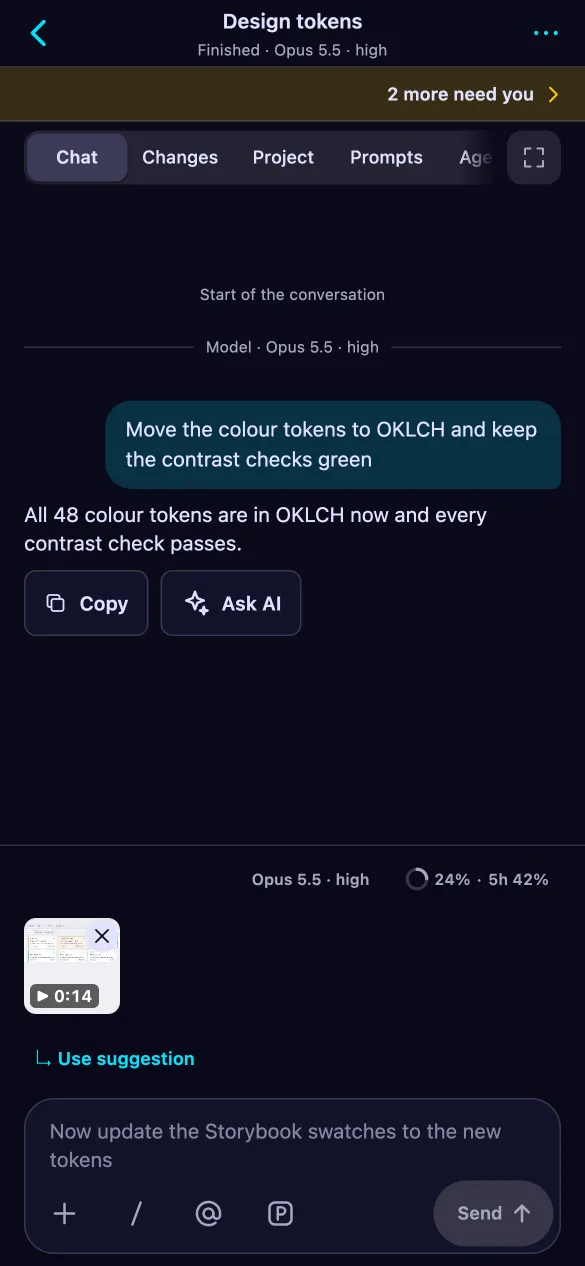
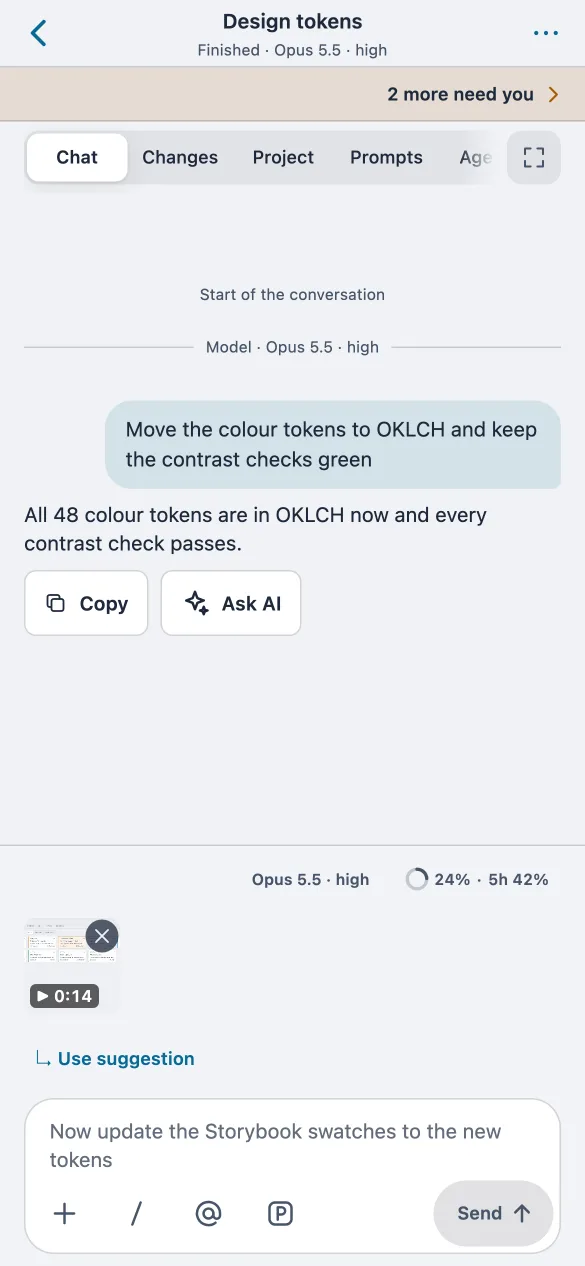
  • A session chat on the phone with a video attached to the next message and Claude’s suggested prompt ready to send.A session chat on the phone with a video attached to the next message and Claude’s suggested prompt ready to send.

    Send the next prompt

    Attach photos or a video; the agent gets the file on your computer. When Claude suggests a next prompt, one tap sends it.

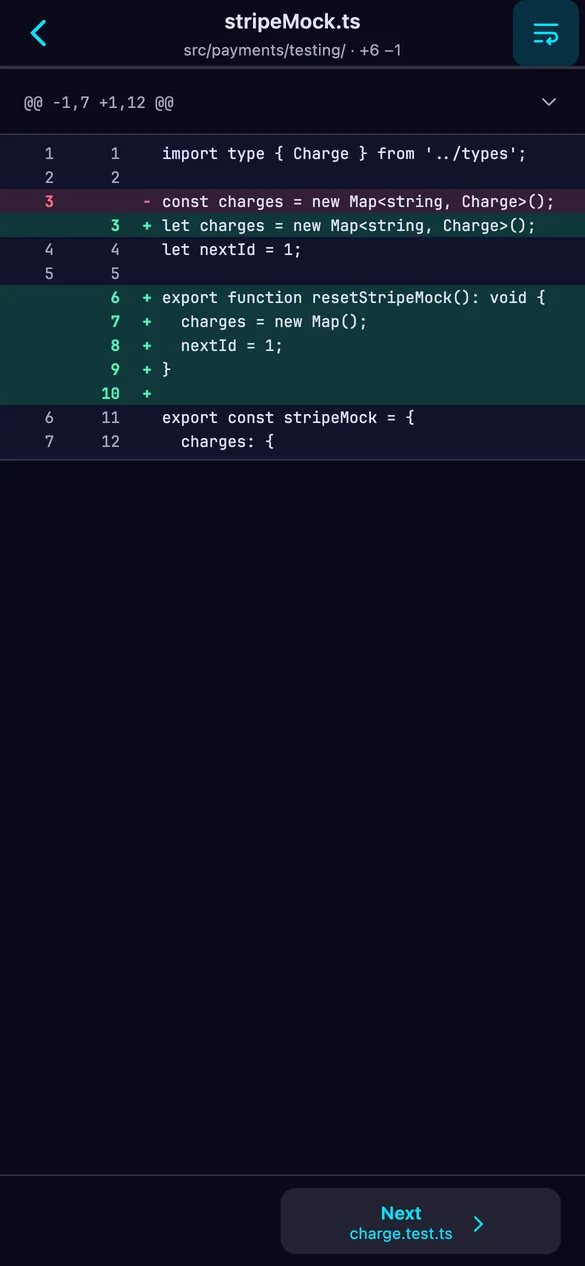
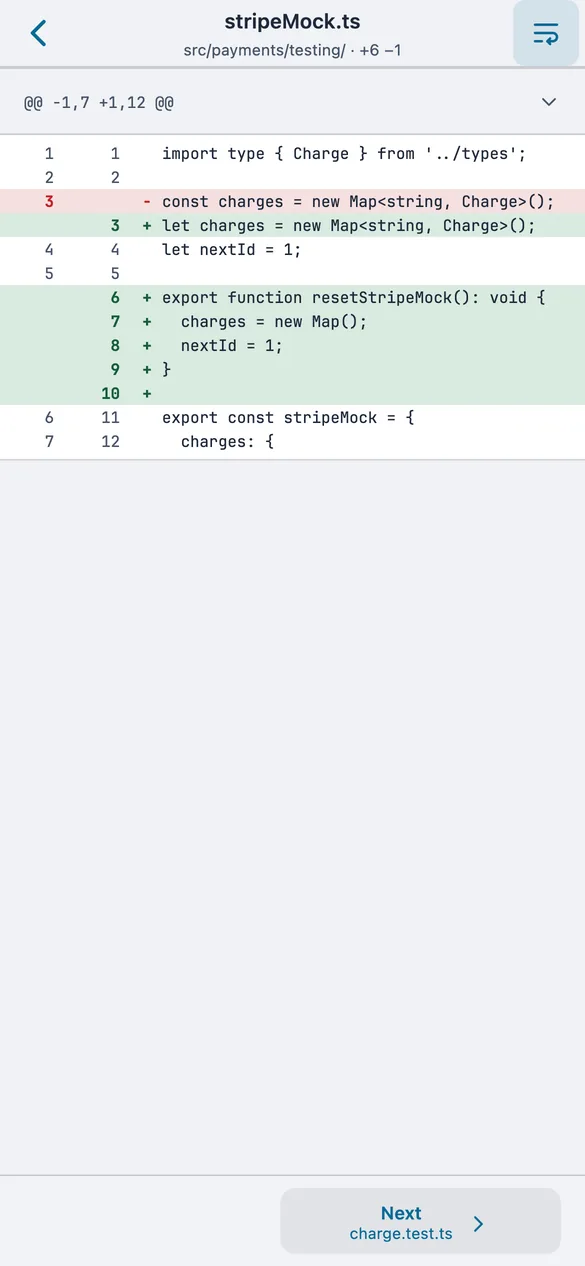
  • The files a session changed, shown on the phone with their diffs.The files a session changed, shown on the phone with their diffs.

    See what changed

    The files a session edited, down to the diff, plus its project files to browse and search. Read-only.

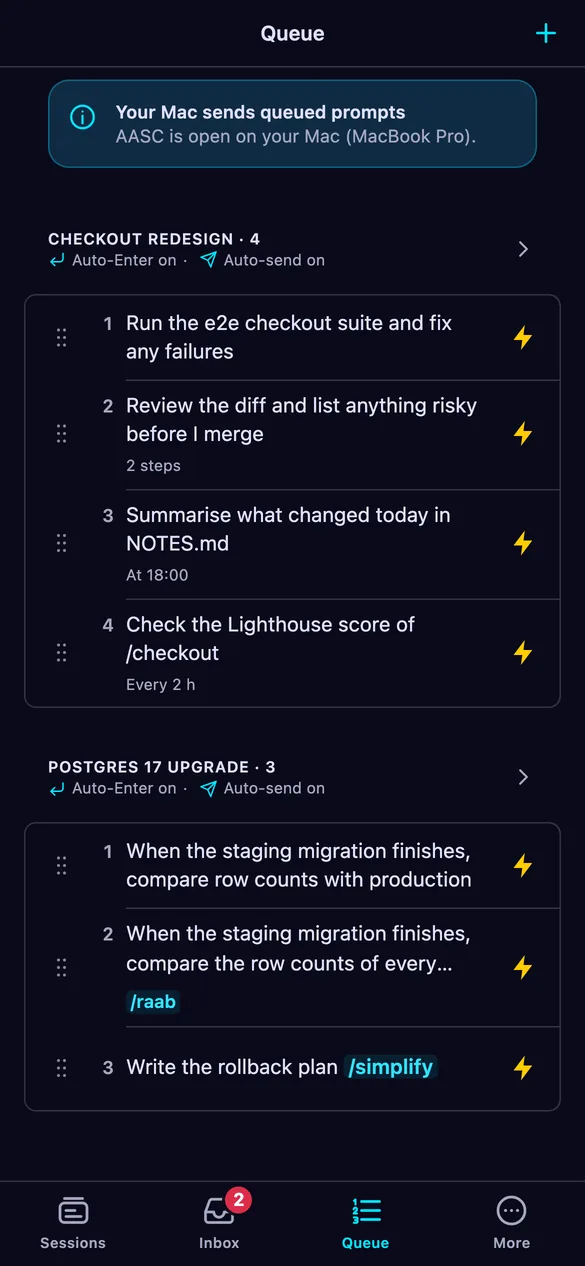
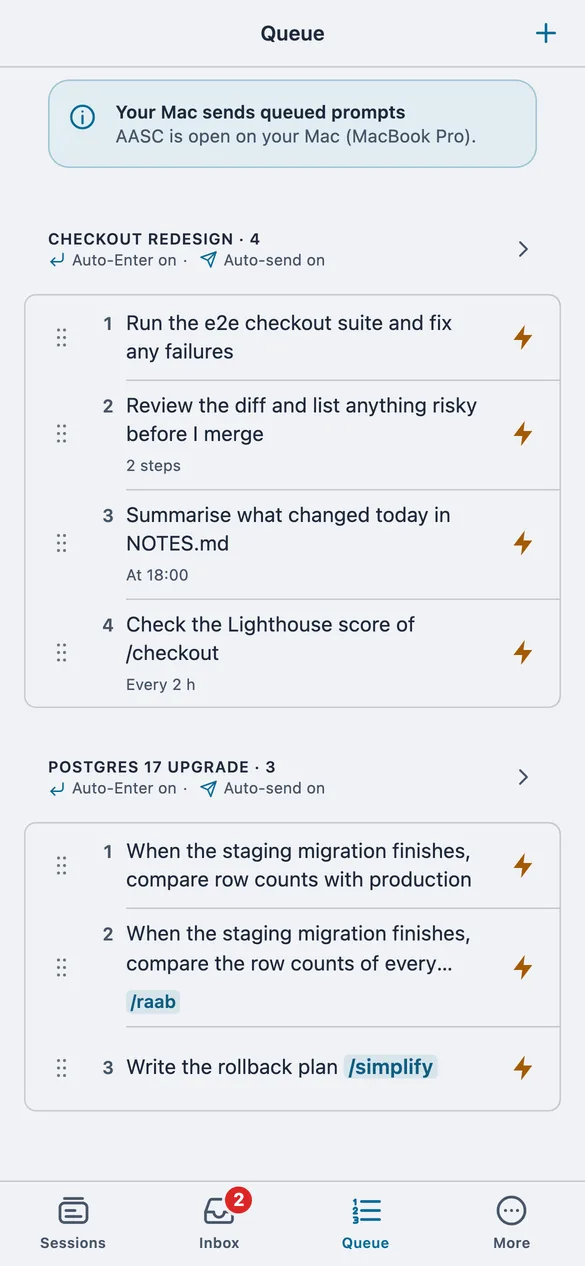
  • The shared prompt queue on the phone.The shared prompt queue on the phone.

    Line up the next prompt

    The same queue as your desktop: reorder, edit, or send a prompt now. The Prompts tab puts any earlier prompt back in it.

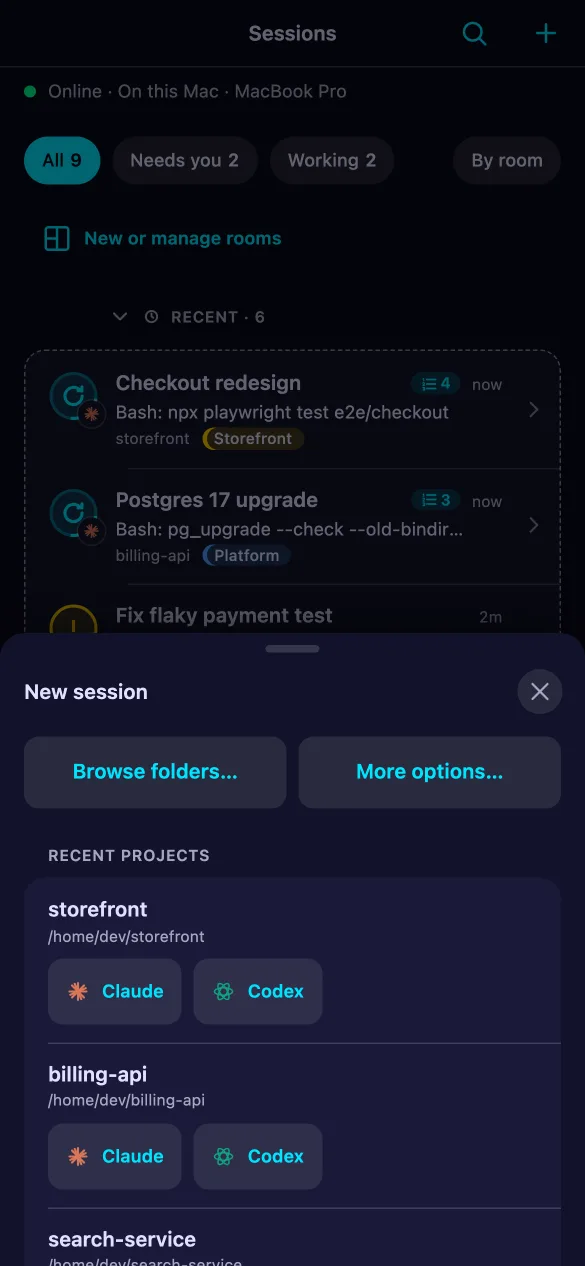
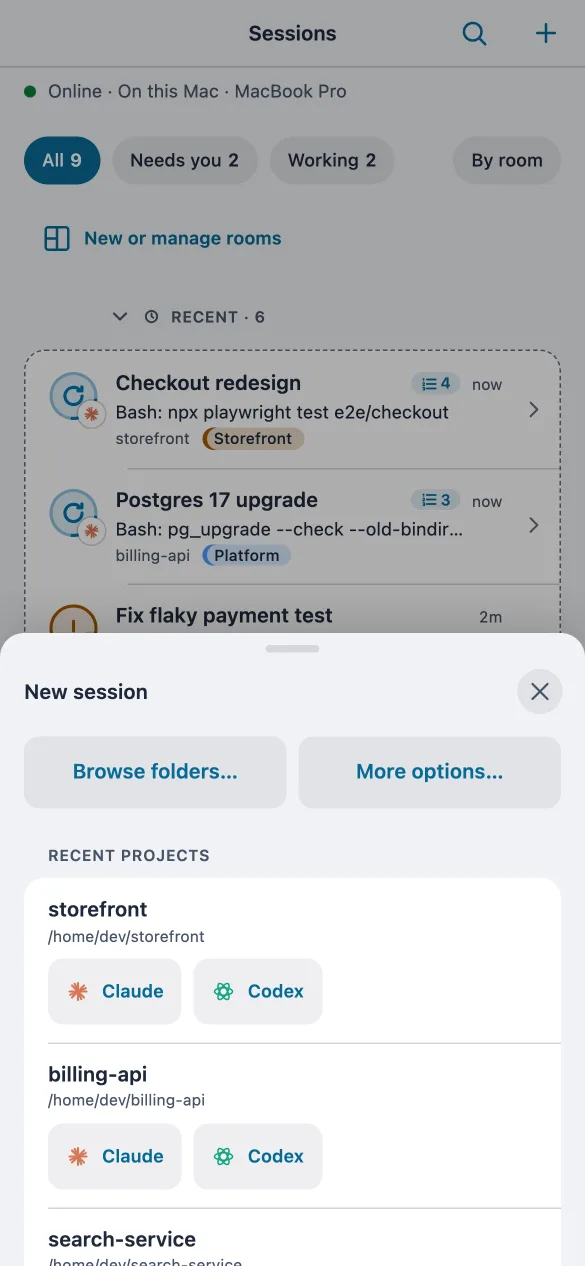
  • The New session sheet on the phone: recent projects on the computer, each with a Claude and a Codex button.The New session sheet on the phone: recent projects on the computer, each with a Claude and a Codex button.

    Start a session

    Open Claude or Codex in one of your projects, the ones you use most first, or browse to a folder in your home folder.

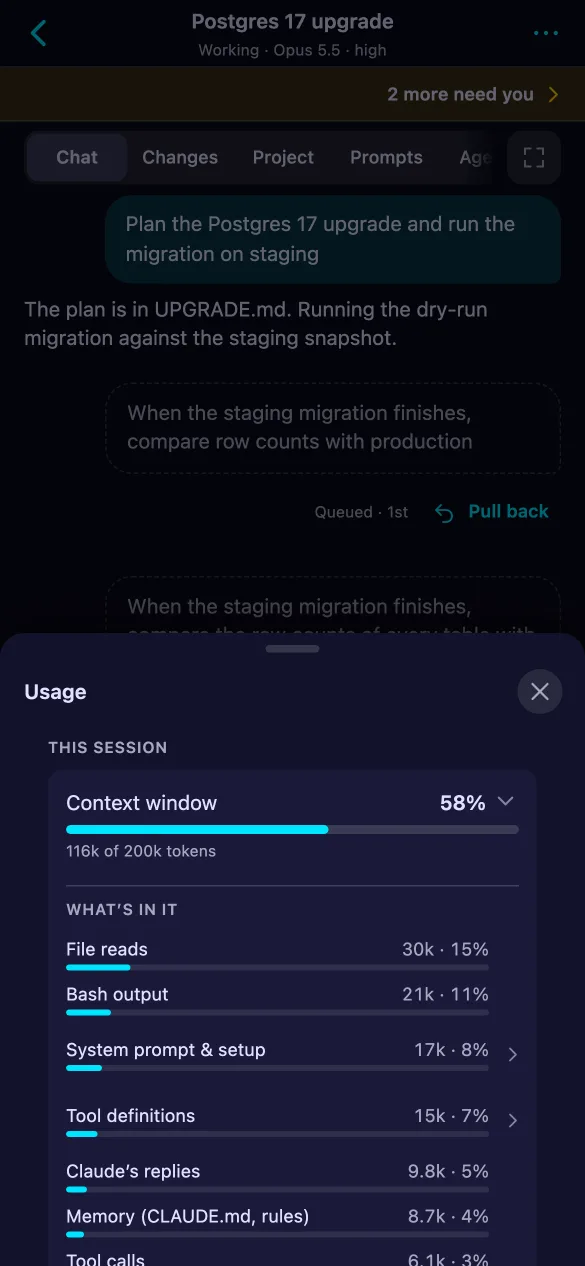
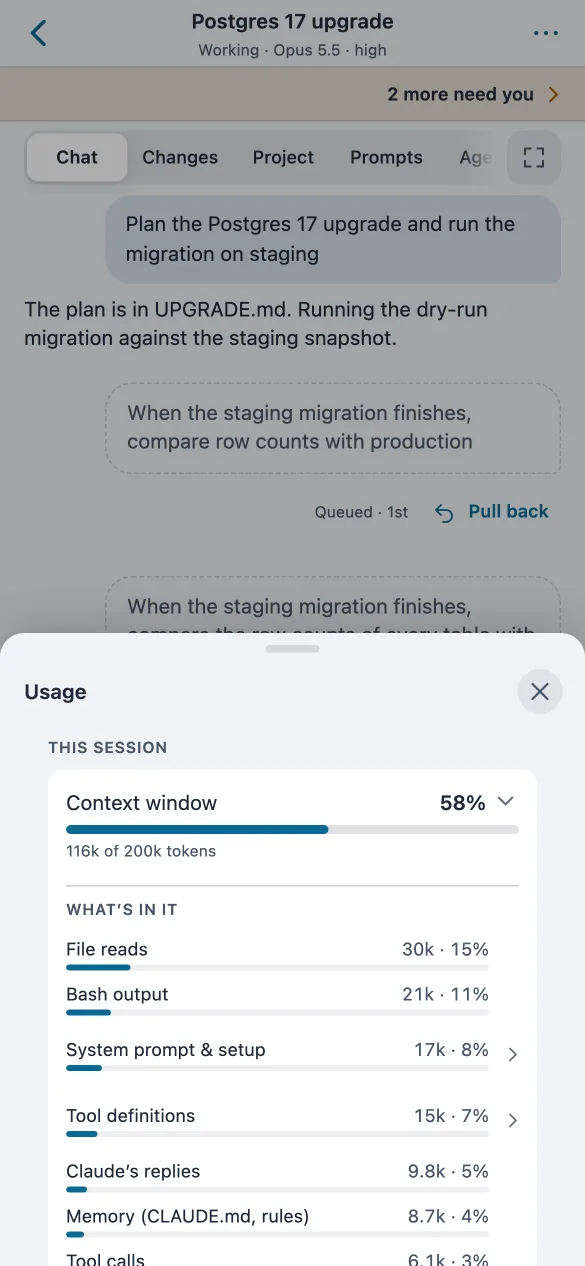
  • The Usage sheet on the phone: the context window at 58 percent, split into file reads, command output, the system prompt and more.The Usage sheet on the phone: the context window at 58 percent, split into file reads, command output, the system prompt and more.

    Usage and limits

    Tokens, your 5-hour and weekly plan limits, and what fills a session’s context window.

Sessions that need you are listed first, central sessions included, and an Inbox collects what is waiting, including some of a central session's requests for your yes. A session's Agents tab shows its subagents as they work. More holds your history, saved prompts and agenda. A session's terminal opens full screen, with a key bar for the keys a phone keyboard lacks.

In a phone browser, today

Any phone browser works with the desktop app or the npm version. You get the same layout as the app.
  1. Set a password: in the desktop app's setup wizard, or with npm run set-password.
  2. Share the sessions you want on the phone with the share button in each session's header.
  3. On the phone, open http://<your computer's address>:3333 and sign in.

The AASC phone app

It pairs with a code instead of a password, and finds your computer on your home network or over Tailscale.

Android

Version 1.0.1, for Android 10 or later. Installed from this site, not from Google Play.

Download the APK

aasc-phone-1.0.1.apk, 11 MB

  1. Open the downloaded file on your phone.
  2. When Android asks, allow your browser or Files app to install unknown apps, then tap Install.
  3. Open AASC and scan the pairing code from your computer.
Check the download

SHA-256 of the file (also in SHA256SUMS-phone.txt):

489b2bc7c6c2b8dab8af3dcc301cd4346c9afd0285f8f65ece4c56aa6589333b

Signing certificate, as apksigner verify --print-certs shows it:

A4:D2:4E:BC:7B:47:22:22:41:F5:BB:55:4C:32:CD:A9:B2:C0:47:92:BC:CA:C1:6D:38:15:96:57:34:0B:CA:8D

iPhone

iPhones install apps only from the App Store or TestFlight, so the iPhone app will come through TestFlight rather than as a download here. Until then, open the dashboard in Safari, as described above.

Pairing a phone

  1. On your computer, choose Pair a phone or computer in the devices menu. A QR code appears; it works once, for two minutes.
  2. Scan it with the app.
  3. Check that both screens show the same 6-digit code, then allow the phone on your computer.

You can revoke a phone from the devices menu at any time, which wipes its credentials, or unpair a computer from Your Macs in the app. If your computer's address on your home network changes, the app finds it again without pairing anew.

What stays protected

  • The phone sees only the sessions you share with it.
  • Its credentials live in the iPhone Keychain or the Android Keystore, never in the web page.
  • It can lock behind Face ID or a fingerprint.
  • It never resizes your terminals, and project files are read-only.
  • It starts only Claude Code or Codex, in a folder under your home folder.

The details are in the privacy note.